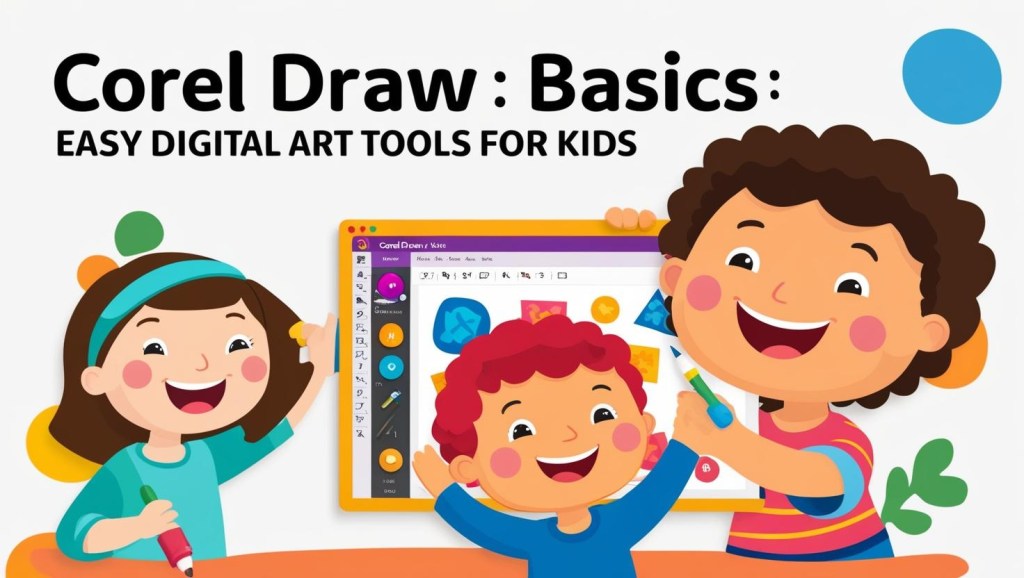
Digital art is rapidly becoming one of the most exciting ways to spark creativity in children. Among the many tools available, Corel Draw stands out as an easy-to-use platform, perfect for budding young artists to explore their imagination. Whether your child loves drawing cartoons, designing greeting cards, or experimenting with vibrant colors, Corel Draw opens the door to endless artistic possibilities.
This guide will take you through everything you need to know about introducing Corel Draw to kids, from setup to creative project ideas, offering tips along the way to help parents and guardians foster a healthy digital art environment at home.
Why Corel Draw Is Perfect for Young Artists
Corel Draw is a user-friendly graphic design software that makes digital art simple, fun, and interactive, even for kids. Its intuitive interface and beginner-friendly tools allow children to express their creativity without overwhelming them with overly complex features.
Corel Draw offers a wide range of tools such as brushes, shapes, and color palettes that help young artists experiment with digital design while building foundational art skills. The software is also versatile—kids can use it to paint, sketch, or create custom designs. Plus, it’s a fantastic way to introduce technology in a creative and constructive manner.
Getting Started With Corel Draw for Kids
Before your child dives into the world of digital art, here’s how to set up Corel Draw for safe and user-friendly use at home.
Step 1: Installation Made Simple
- Download the Software
Visit the official Corel Draw website and select the version that suits your needs. Corel Draw offers a free trial period, perfect for testing if it’s the right fit for your family.
- Install and Configure
Follow the prompts to install Corel Draw on your computer. Once installed, open the software and customize the settings to make it easy for kids to use.
- Create a Kid-Friendly Workspace
Adjust the workspace layout to include only essential tools. Corel Draw allows you to hide advanced features, ensuring young users have a clear and distraction-free environment.
Step 2: Basic Setup for Kids
- Enable Tutorials: Corel Draw offers built-in tutorials that are helpful for beginners, including kids.
- Save Frequently: Teach your child to save their work often to avoid losing projects. Set up an “Art Projects” folder on your computer to keep their creations organized.
- Parental Control Settings: If your child will be exploring online art communities for inspiration, ensure you’ve put appropriate internet safety settings in place.
Exploring Digital Art with Corel Draw
Corel Draw is designed to nurture creativity in kids, and the best way to get started is by introducing them to fun, educational projects.
Beginner-Friendly Projects to Try
- Design a Birthday Greeting Card
Kids can use Corel Draw’s pre-made templates or create a design from scratch. Encourage them to use their favorite colors and add personalized text to celebrate someone special.
- Draw Their Favorite Characters
Break out the shape tools and brushes! Whether it’s superheroes or cute animals, kids can recreate or reimagine their favorite characters in vibrant detail.
- Create a Family Portrait in Digital Style
This is a fun way to teach kids about proportions and shapes while drawing family members or friends.
- Experiment with Patterns
Corel Draw’s symmetry tools make it incredibly easy to create intricate patterns—perfect for projects like digital wallpapers or wrapping paper designs.
- Make a Storybook Cover
Encourage storytelling by letting your child design their very own book cover, complete with illustrations and decorative fonts.
Benefits of Digital Art Projects
- Promotes Critical Thinking: Digital art teaches kids to plan compositions and problem-solve while working with the software.
- Explores Creativity: Kids have limitless options to experiment with colors, patterns, and effects, sparking their imagination.
- Encourages Perseverance: Digital projects offer the opportunity to learn from mistakes without the fear of “messing up,” which builds resilience.
Corel Draw Features Every Kid Will Love
Corel Draw’s tools and features make it easy for children to explore and enjoy creating art.
Key Features for Kids
- Brushes and Pens: Wide-ranging brush effects allow kids to draw, paint, and sketch just like they would on paper.
- Shapes and Templates: Perfect for younger kids, these tools make creating basic designs simple and rewarding.
- Color Palette: A rainbow of colors inspires creativity at every click.
- Symmetry Drawing Tool: Create mesmerizing symmetrical shapes with ease.
- Undo/Redo Options: Mistakes are part of learning, and Corel Draw’s undo/redo feature lets kids experiment without fear of errors.
- Export Options: Kids can proudly save and share their finished masterpieces in different formats like JPEG or PDF for printing and online sharing.
Tips for Parents and Guardians
Nurturing creativity in children goes beyond providing the right tools. Here’s how you can help foster their digital art skills responsibly and positively.
Set Healthy Boundaries
- Limit Screen Time
Balance is key. Set aside specific hours for digital art and encourage other offline creative activities, like painting or crafting.
- Provide Breaks
Make sure your child takes short breaks to rest their eyes and prevent digital fatigue.
Guide Their Learning
- Explore Together: Spend time co-creating projects with your child to encourage bonding and learning.
- Offer Encouragement: Celebrate finished projects, no matter how small. Positive reinforcement builds confidence.
- Introduce Inspiration: Share age-appropriate art tutorials and encourage kids to seek creative inspiration in their everyday lives.
Ensure Safety
- Supervise Online Sharing: If your child plans to post their artwork online, monitor their activity to ensure good internet safety practices.
- Educate on Copyright: Teach kids the basics of respecting other artists’ work and creating their own original pieces.
 Simple Drawing For Kids